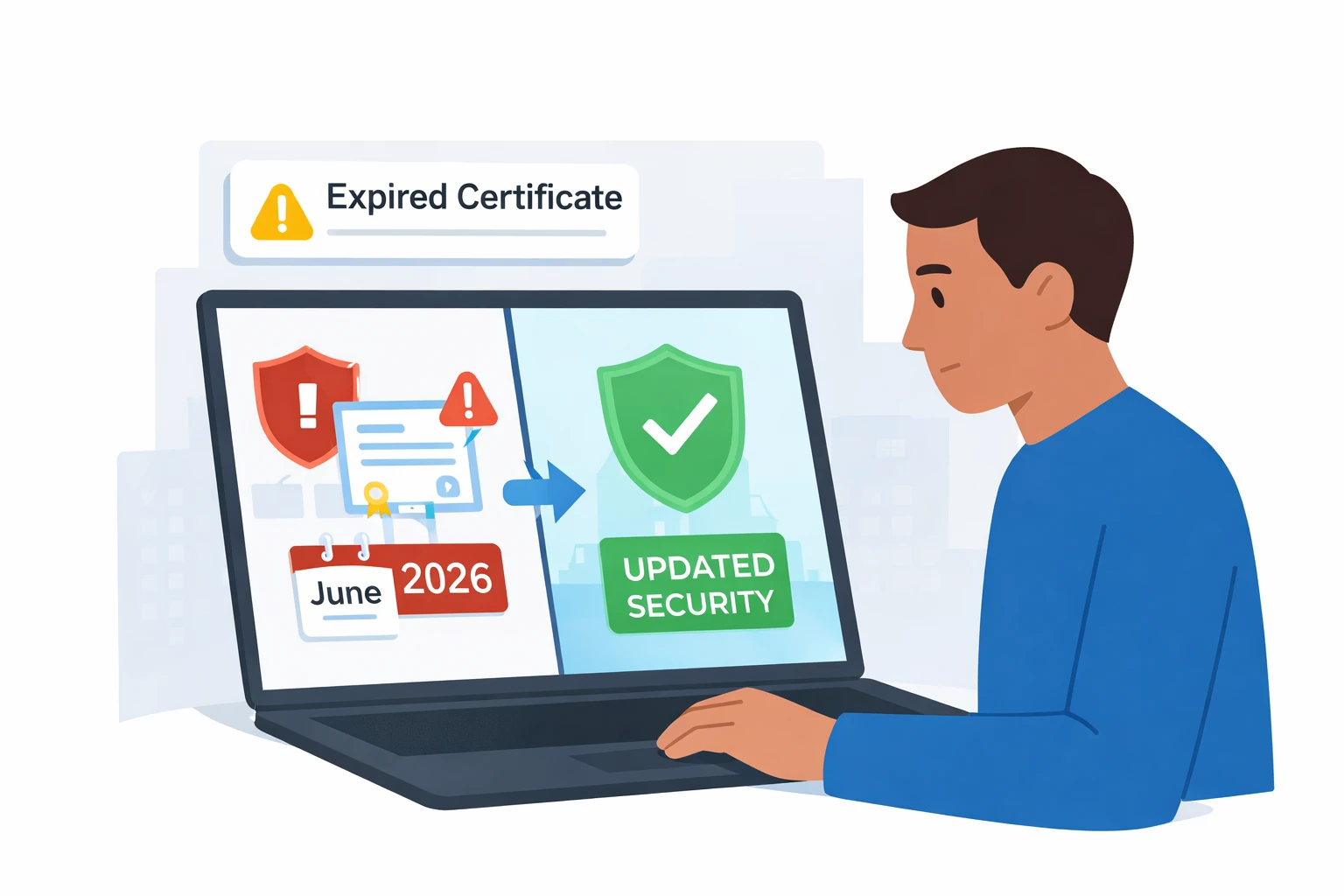
Secure Boot Certificates Expire in June 2026: The Silent Deadline Most IT Teams Aren’t Ready For

Key Takeaways

  • Microsoft’s original 2011 Secure Boot certificates begin expiring on June 24, 2026, with the Windows Production PCA 2011 following in October 2026.
  • Affected devices include virtually every Windows PC and server shipped since 2012, including Windows 10, Windows 11, and Windows Server 2012 through 2025.
  • Devices that miss the transition will continue to boot and function, but will lose the ability to receive security updates for the Windows Boot Manager and Secure Boot components, creating a degraded security state vulnerable to bootkit malware.
  • Windows client devices receive the new 2023 certificates automatically through Windows Update, but Windows Server requires manual deployment via registry keys or Group Policy.
  • Unsupported systems, including Windows 10 devices not enrolled in Extended Security Updates, will not receive the new certificates at all.
  • Organizations should begin auditing their fleet, verifying OEM firmware readiness, and deploying updates well before the June 2026 deadline.

A Cryptographic Deadline Hiding in Plain Sight

Most IT operational deadlines arrive with plenty of warning. End-of-support dates get announced years in advance, vendors publish migration guides, and analyst coverage builds steadily until the transition hits. The Secure Boot certificate expiration scheduled for June 2026 has not followed that pattern. Despite affecting nearly every Windows device manufactured in the last 14 years, the expiration has received little attention outside of deep technical circles, leaving many organizations unaware that a foundational security component of their fleet is quietly approaching a hard cryptographic limit.

The stakes are not theoretical. Secure Boot is the mechanism that verifies the integrity of the Windows startup process, ensuring that only trusted software loads before the operating system itself. It relies on a chain of cryptographic certificates, known as certificate authorities, embedded in device firmware. Those certificates, issued by Microsoft in 2011, were designed with a 15-year lifespan. That clock is now running out.

What Is Actually Expiring and When

Three Microsoft certificates reach their expiration dates across 2026. The Microsoft Corporation KEK CA 2011 and the Microsoft Corporation UEFI CA 2011 expire first, on June 24, 2026. The Microsoft Windows Production PCA 2011, which signs the Windows bootloader itself, expires in October 2026. Each of these certificates serves a distinct role: the KEK controls which entities can update the Secure Boot database, the UEFI CA validates third-party bootloaders and option ROMs, and the Production PCA signs the Windows Boot Manager.

Microsoft has issued replacement 2023 certificates to maintain continuity. The new certificate structure also introduces a meaningful architectural change. The original 2011 UEFI CA signed everything from bootloaders to option ROMs in a single trust anchor. The 2023 update splits this into two distinct certificates, allowing administrators finer control over which types of firmware components are trusted on a given system. This separation matters for regulated environments where limiting trust boundaries is a compliance requirement, as outlined in Microsoft’s official Windows IT Pro advisory on the 2026 Secure Boot transition.

Which Devices Are Affected

The scope of affected devices is broader than most administrators realize. Any physical or virtual machine running a supported version of Windows 10, Windows 11, Windows Server 2012, 2012 R2, 2016, 2019, 2022, or 2025 is affected, including long-term servicing channel editions. This encompasses everything from the oldest surviving domain controllers to the newest Surface laptops. Generation 2 Hyper-V virtual machines are also in scope, though Generation 1 VMs, which do not support Secure Boot, are not.

Devices shipped from OEMs in 2024 and later were increasingly provisioned with both the 2011 and 2023 certificates at the factory, and nearly all devices shipped in 2025 include them. That still leaves an enormous installed base of production hardware that requires action. For organizations managing mixed fleets of laptops, desktops, and servers, the practical challenge lies in identifying which devices have already received the new certificates and which still need them.

What Happens If a Device Misses the Deadline

A device that reaches June 2026 without the 2023 certificates will not stop working. It will continue to boot normally, run applications, and install regular Windows updates. The damage is more subtle and accumulates over time. Once the 2011 certificates expire, the device can no longer install security updates for the Windows Boot Manager or the Secure Boot components themselves. If a new boot-level vulnerability is discovered, as happened with the BlackLotus UEFI bootkit tracked as CVE-2023-24932, the affected device will have no path to receive the mitigation.

This is what Microsoft has described as a degraded security state. The device remains functional but becomes progressively less protected as new threats emerge. Bootkit malware is particularly dangerous because it loads before the operating system and before antivirus software, making it difficult or impossible to detect with conventional endpoint tools. For organizations in regulated industries, running devices in this state may also create compliance exposure, since most frameworks require timely application of security patches to protective controls. Businesses with formal regulatory obligations should factor this into their planning alongside existing compliance program reviews.

The Critical Difference Between Client and Server Deployment

One of the most important operational details of the 2026 transition is that Windows client and Windows Server behave differently. Windows 10 and Windows 11 devices receive the new 2023 certificates automatically through the regular monthly Windows Update process, delivered via Controlled Feature Rollout. For organizations that allow Microsoft to manage updates, the transition should require little to no manual intervention on client devices.

Windows Server is a different story. Server systems do not receive the 2023 certificates automatically. IT administrators must manually deploy them using registry keys or Group Policy settings. Windows Server 2025 certified hardware already includes the new certificates in firmware, but every earlier supported version, from Server 2012 through Server 2022, requires explicit action. This is the single most common blind spot in current Secure Boot planning, and it disproportionately affects small and midsize businesses that lack dedicated server engineering teams. Organizations without in-house expertise may want to engage a virtual CIO or CTO to coordinate the rollout across their server estate.

Windows 10 and the Extended Security Updates Gap

Windows 10 reached end of support on October 14, 2025, which creates an additional wrinkle in the Secure Boot timeline. Devices running unsupported versions of Windows 10 do not receive Windows updates and will therefore not receive the new certificates. Organizations that enrolled eligible Windows 10 systems in the Extended Security Updates program can still receive the certificate updates, but only for as long as their ESU coverage remains active.

For businesses still running Windows 10 fleets into 2026, this creates a compounding risk. The operating system itself is out of mainstream support, the ESU program pricing doubles each year, and the Secure Boot certificates underneath it are about to expire. The most cost-effective path for most organizations remains migration to Windows 11, a transition covered in greater depth in the guide to upgrading from Windows 10 to Windows 11.

What IT Operations Teams Should Do Right Now

Preparation for the June 2026 deadline should be treated as a discrete project with defined milestones rather than an ambient update task. A practical approach begins with inventory. Administrators need a clear accounting of every Windows device in the environment, including virtual machines, and its current certificate status. Starting in April 2026, the Windows Security app surfaces this information directly on client devices under Device Security, showing whether the 2023 certificates have been applied and whether any action is needed.

The next step is firmware readiness. Some devices, particularly those manufactured before 2020, may require an OEM firmware update before they can accept the new certificates. Administrators should check with device manufacturers to confirm that firmware updates are available and that their platforms are on the supported list. Devices outside their OEM support window may not receive the necessary firmware updates at all, which effectively forces a hardware refresh decision and ties the Secure Boot deadline into broader IT asset lifecycle planning.

Server environments require the most attention because of the manual deployment requirement. Administrators should identify all Windows Server instances, validate the current firmware version, test the certificate deployment on a non-production system, and then stage the rollout across production servers using established backup and recovery practices to protect against any unexpected boot issues. Documented maintenance windows and rollback procedures are essential, particularly for domain controllers and line-of-business application servers.

The Broader Operational Picture

The Secure Boot certificate expiration is not an isolated event. It coincides with a cluster of Microsoft end-of-support milestones in 2026, including SQL Server 2016 in July, Office LTSC 2021 in October, and the final ESU year for Windows Server 2012 and 2012 R2, also in October. Organizations that have deferred modernization are now facing a concentrated period where multiple foundational systems require attention at the same time. Treating these as separate projects invites resource conflicts and last-minute scrambles. Treating them as a coordinated modernization effort, ideally with managed IT support backing the execution, produces better outcomes and lower total cost.

The June 2026 deadline will not cause catastrophic failures on day one. What it will do is quietly erode the security posture of unprepared fleets, day by day, as new boot-level vulnerabilities emerge and unpatched systems accumulate risk. Acting now, while the certificates are being rolled out automatically and OEM support remains available, is meaningfully cheaper and less disruptive than responding after the deadline has passed.

By Thomas McDonald

2026-04-07T10:36:49-05:00April 7, 2026|

IT Asset Lifecycle Management: Keeping Hardware from Becoming a Liability

For many organizations, hardware management is a reactive process. Devices are purchased when something breaks, software licenses are renewed out of habit, and aging infrastructure quietly slows down operations until a major failure forces action. This approach isn’t just inefficient—it’s risky and expensive. That’s why IT asset lifecycle management (ITALM) has become a core operational discipline for businesses aiming to reduce downtime, control costs, and improve support delivery.

At its core, ITALM is about managing every phase of your hardware and software—from procurement through active use to retirement. When done right, it provides full visibility into your infrastructure, ensures systems are maintained proactively, and prevents outdated assets from becoming operational liabilities.

What Is IT Asset Lifecycle Management?

IT asset lifecycle management is the structured oversight of an asset’s entire journey within an organization. This includes acquisition, deployment, support, maintenance, and decommissioning. ITALM applies to physical devices (like laptops, servers, and phones) as well as software licenses, virtual machines, and network appliances.

The goal is to extend the useful life of each asset while ensuring it performs reliably and securely. A well-managed lifecycle improves employee productivity, optimizes IT spending, and enhances overall service delivery.

The 5 Key Phases of the IT Asset Lifecycle

Effective lifecycle management begins with understanding the operational phases of every IT asset:

1. Procurement

This is where strategic planning begins. Instead of purchasing assets ad hoc, procurement should be guided by documented standards, approved vendors, and alignment with long-term IT strategy. Standardizing equipment reduces complexity in support and ensures compatibility across systems.

2. Deployment

Once procured, assets need to be configured, tagged, and rolled out efficiently. This includes imaging devices, installing necessary applications, assigning users, and logging the asset in a centralized management platform. Poor onboarding leads to immediate inefficiencies and future tracking issues.

3. Maintenance and Monitoring

This is the most active phase, and where many organizations fall short. Devices should be monitored for performance, patched regularly, and covered under warranty or support contracts. If you’re relying on users to report issues, you’re already behind. Proactive IT support—like Support+ from Cost+—ensures assets remain healthy throughout their lifecycle.

4. Optimization and Auditing

Assets should be periodically audited to ensure they’re being used efficiently. Underused devices can be reassigned, older equipment can be upgraded, and misconfigured systems can be remediated. This phase is where many businesses reclaim lost productivity and eliminate redundancy.

5. Retirement and Disposal

All assets eventually reach the end of their useful life. Having a clear decommissioning process helps ensure data is wiped securely, licensing is reallocated or terminated properly, and devices are recycled in compliance with environmental regulations. Delaying this phase can lead to security gaps and compliance failures.

Why Lifecycle Management Matters More in 2025

The operational burden of IT has grown dramatically in recent years. Hybrid work, increased device sprawl, evolving compliance requirements, and rising security threats all place pressure on infrastructure. Without a structured approach to managing assets, IT teams are forced into constant reaction mode—resolving issues that could have been prevented with better oversight.

Today, ITALM isn’t just about cost savings. It’s about:

  • Ensuring hardware is compatible with modern applications
  • Maintaining endpoint security and reducing cyber risk
  • Enabling fast, consistent onboarding for new hires
  • Reducing support tickets tied to aging or failing devices
  • Forecasting future needs to support business growth

Asset management is no longer optional—it’s operational hygiene.

How Poor Asset Management Impacts Support Delivery

One of the most overlooked consequences of weak ITALM is the strain it places on support teams. When users are on outdated hardware, calls to the help desk spike. When devices aren’t properly tracked, ticket resolution slows down. When patches or warranties lapse, your team is left scrambling for solutions that could have been planned in advance.

In contrast, companies that manage their IT assets proactively are better positioned to deliver responsive, effective support. Support technicians know what equipment each user has, when it was last serviced, and what software it’s running. This context reduces resolution times and improves the end-user experience.

What a Mature ITALM Process Looks Like

For organizations looking to improve their technology operations, a mature lifecycle management strategy typically includes:

  • A centralized asset management platform with real-time tracking
  • Defined procurement policies and approved vendor lists
  • Standardized device imaging and deployment processes
  • Automated patching and warranty monitoring
  • Asset performance reporting and reassignment workflows
  • Clear end-of-life policies for secure disposal and deprovisioning

These aren’t just IT improvements—they’re operational safeguards. They reduce risk, improve service consistency, and prevent avoidable downtime.

Cost+ Can Help Streamline Your Asset Lifecycle

Through our Support+ program, Cost+ helps businesses take full control of their asset lifecycle. From procurement guidance and onboarding to proactive monitoring and decommissioning, we provide the tools and expertise needed to keep your hardware aligned with your operational goals.

Our team works alongside your internal staff to ensure that every asset is accounted for, optimized, and supported throughout its lifespan. Whether you’re managing dozens of devices or several hundred, we bring clarity and control to a process that’s often overlooked.

Final Thought: Don’t Let Aging Hardware Become a Liability

IT assets are more than just tools—they’re the backbone of your operations. But without a structured lifecycle strategy, they can become liabilities that degrade performance and increase risk. By taking a proactive approach to IT asset lifecycle management, you protect your infrastructure, empower your team, and prepare your business for what’s next.

Ready to bring order and efficiency to your IT environment? Let’s talk about how Support+ can help you gain control of your asset lifecycle—before your infrastructure starts holding you back.

2025-10-16T09:56:23-05:00October 16, 2025|

SaaS Cost Management: How to Audit and Control Your Tech Stack Before Renewal Season

As renewal season approaches, many businesses face rising software bills and unused subscriptions. Effective saas cost management isn’t just about reducing expenses—it’s about understanding what you have, what you’re using, and what can be cut before contracts auto-renew. A strategic approach to managing your software stack can result in meaningful savings and stronger IT governance.

decision makers managing SAAS costs

Why SaaS Costs Get Out of Control

Most businesses accumulate SaaS tools over time. Departments sign up for project management software, scheduling apps, analytics platforms, and more—often without IT involvement. The result? Duplicate tools, underutilized licenses, and surprise renewals. Without a clear audit, these expenses add up fast and create unnecessary cybersecurity risks.

Step 1: Audit All Active Subscriptions

Start by collecting data on every active SaaS product your business pays for. Use expense reports, corporate card charges, procurement logs, and cloud access logs. Tools like Blissfully and Zylo can help automate this process by discovering what software your employees are using—even tools purchased outside the IT department.

Step 2: Identify Redundancies and Waste

Review your findings for overlap. Are you paying for two project management platforms? Three survey tools? Eliminate what you don’t need and consolidate where possible. Licenses that haven’t been used in 90 days are strong candidates for cancellation or reduction.

Step 3: Coordinate with Department Leaders

Don’t make decisions in isolation. Meet with each department to understand how they use the tools in question. Some software may be business-critical for one team but redundant for another. You’ll also uncover shadow IT—apps purchased by individual employees that pose risk and waste.

Step 4: Create a Renewal Calendar

One of the biggest problems in saas cost management is auto-renewals that slip by unnoticed. Build a shared calendar that includes every contract’s renewal date, notice period, and point of contact. Set reminders 30–60 days in advance to allow time for renegotiation or cancellation.

Step 5: Establish Procurement Governance

Develop and enforce a policy requiring all new SaaS tools to go through IT and finance. This ensures every subscription is vetted for security, compatibility, and cost-effectiveness. Require department heads to justify renewals annually based on usage and value.

Step 6: Monitor and Optimize Continuously

SaaS audits should not be once-a-year events. Perform quarterly reviews to identify creep, flag unused licenses, and adjust plans as your business changes. Assign an owner—IT or finance—to oversee the entire stack.

Helpful Resource

For additional strategies on SaaS cost control, this breakdown from CloudZero is detailed and actionable:
SaaS Cost Management: Best Practices

Where Cost+ Can Help

Through Cloud+, Cost+ helps companies uncover SaaS waste, streamline renewals, and put policy around procurement. We help teams build dashboards, track licenses, and stop spending on tools no one uses.

Bottom Line

Smart saas cost management protects your budget, reduces security exposure, and keeps your software environment aligned with real business needs. A simple audit today can prevent thousands in unnecessary charges tomorrow.

By Dan Krieger
Managing Member

2025-08-26T12:58:43-05:00August 26, 2025|

The Hidden Costs of Delaying Windows Server 2012 R2 Upgrade

Although extended support for Windows Server 2012 R2 ended on October 10, 2023, many organizations continue running critical systems on it—often unaware of the full scope of windows server 2012 r2 upgrade risks. These outdated systems no longer receive free security updates, leaving businesses open to rising threats, regulatory fines, and inflated long-term costs.

windows server 2021 end of life discussions and delay

What Happens Now That Support Has Ended?

According to Microsoft’s official lifecycle documentation, Windows Server 2012 and 2012 R2 are no longer supported unless enrolled in the Extended Security Update (ESU) program. This means no more free security patches, bug fixes, or technical support. ESUs are a temporary fix—available through Azure or on-premises licensing—but they’re costly and expire in 2026.

The Growing List of Windows Server 2012 R2 Upgrade Risks

Delaying your upgrade isn’t just about missing out on new features—it’s about actively increasing your business risk. Some of the most pressing concerns include:

  • Cybersecurity exposure: With over 1,000 known vulnerabilities affecting core services like RDP, SMB, and IIS, unpatched systems are a prime target for ransomware and remote-code attacks.
  • Compliance violations: Many regulatory standards require supported, up-to-date software. Running end-of-life servers can trigger audit findings, fines, or insurance denial.
  • Loss of vendor support: Software vendors may drop support for applications running on unsupported operating systems, limiting access to updates and troubleshooting.
  • Unpredictable costs: ESUs can cost up to 75% of your original license annually. Over time, they may exceed the cost of a proper upgrade—without providing any future benefit.

Why Businesses Postpone — and Why It’s Risky

Some IT leaders delay upgrades due to perceived complexity, legacy app dependencies, or budget constraints. But the real cost comes from a false sense of security. Just because a system is still running doesn’t mean it’s safe—or recoverable if it fails.

Downtime caused by outdated infrastructure is difficult to recover from quickly. As other systems evolve, older servers introduce incompatibility with newer platforms, APIs, and cloud services. This not only adds friction—it creates operational drag.

Four Steps to Take Now

1. Conduct an Infrastructure Audit

Take inventory of all physical and virtual machines running Windows Server 2012 or 2012 R2. Categorize them by business function, criticality, and replacement options. Don’t forget backup servers or test environments that may have been overlooked.

2. Choose an Upgrade Path

Organizations typically upgrade to Windows Server 2019 or 2022—or move workloads to Azure, which includes free ESU until October 2026. Microsoft’s cloud model often makes the migration cost-neutral when considering avoided ESU fees.

3. Build a Phased Rollout Plan

Start with lower-priority systems to test compatibility and performance. Then address high-availability environments and mission-critical workloads. Don’t skip dry runs or backup validation before major migrations.

4. Reassess Risk and Compliance Profiles

Work with legal and compliance stakeholders to evaluate the audit implications of continuing to run unsupported infrastructure. For some industries, even a single unpatched server can result in liability exposure.

What You Gain by Upgrading

Beyond resolving windows server 2012 r2 upgrade risks, migrating to modern platforms enables better performance, stronger security baselines, and deeper cloud integration. Features like secured-core server, improved virtualization, and hybrid support offer long-term operational advantages.

Need Help Navigating the Upgrade?

Cost+ can help you create a customized transition plan aligned with your security, compliance, and budget goals. Our Support+ team and Compliance+ experts work together to modernize your infrastructure with minimal disruption to daily operations.

Bottom Line

The longer you postpone, the greater your windows server 2012 r2 upgrade risks. Unpatched vulnerabilities, mounting costs, and operational gaps only compound over time. Treating upgrades as a strategic necessity—not a technical nuisance—is the key to protecting business continuity and preparing for what’s next.

By Thomas McDonald
Vice President

2025-06-21T21:35:09-05:00August 17, 2025|

Why It Might Be Time to Replace Your Firewall

Firewalls have long been a network security cornerstone—but aging devices may now pose hidden risks. Effective firewall replacement planning is essential for business leaders who depend on security, performance, and compliance. Whether your firewall is struggling with modern threats, lacking visibility, or incompatible with cloud workloads, it may be time to evaluate your next move.

Leaders talking about replacing aging firewalls

How Firewalls Got Behind

Many businesses still run appliances that are 5–7 years old with outdated signatures and limited TLS/SSL visibility. These firewalls often can’t decrypt modern encrypted traffic, inspect emerging malware, or integrate with cloud-based tools—leaving blind spots in your network defense.

Key Signs You Need a Replacement

  • Performance degradation: Users experience slow access, failed remote connections, or increased latency during peak workloads.
  • Feature limitations: Look for missing support for TLS 1.3, advanced intrusion prevention (IPS), or web application controls.
  • Outdated firmware: Vendors no longer support software patches or security updates on older models.
  • Cloud and remote work demands: Traditional firewalls may not support SD-WAN, SASE, or secure VPNs with zero trust policies.
  • Compliance gaps: Industries requiring PCI, HIPAA, or SOC2 may now require stronger inspection and reporting capabilities.

Risks of Postponing Replacement

  • Increased breach risk: Unpatched IoT and encrypted traffic can allow malware to bypass defenses.
  • Productivity issues: Latency and performance delays frustrate users and impact business operations.
  • Regulatory exposure: Compliance violations due to lack of appropriate logging and control increase audit risk.
  • Rising support costs: Investing in extended support contracts may exceed the cost of new hardware over time.

How to Approach Firewall Replacement Planning

1. Conduct a Security and Performance Audit

Review current firewall loads, firmware versions, available features, and threat logs. Identify blind spots—including encrypted traffic and cloud-access traffic—that the appliance cannot inspect.

2. Define Requirements Based on Business Needs

Create a checklist of what you need: high-speed SSL/TLS 1.3 support, intrusion prevention, advanced threat intelligence feeds, secure remote access, centralized management, and cloud integration (SD-WAN/SASE).

3. Compare Modern Options

Look at current firewall solutions like Palo Alto Next-Gen, Fortinet FortiGate, or Cisco Secure Firewall. Evaluate virtual appliances and cloud-based platforms for hybrid or remote environments.

4. Plan a Phased Rollout

Replace firewalls in stages—starting with the most vulnerable or critical segments. Perform parallel testing to confirm configurations and policies are consistent with existing setups.

5. Measure ROI and Performance Gains

Track metrics like throughput, threat events blocked, uptime, and user satisfaction before and after replacement. Show dramatic improvements in efficiency or risk reduction to stakeholders.

Outbound Resource

Gartner’s latest report on next-gen firewall market presence outlines why appliances without TLS 1.3 and central management are being deprecated. Read more at:
Gartner: Magic Quadrant for Network Firewalls

Where Cost+ Can Help

Cost+ provides strategic guidance through our Security+ service, assisting with audit, vendor selection, phased deployment, and configuration management—ensuring your new firewall delivers enhanced security without disruption.

Bottom Line

Aging firewalls can leave your organization exposed and hamper performance. With **firewall replacement planning**, businesses can upgrade with purpose—ensuring better visibility, stronger security, cloud compatibility, and compliance readiness. Now is the time to assess whether your perimeter defense is up to today’s standards.

By Thomas McDonald
Vice President

2025-06-21T21:32:13-05:00August 14, 2025|
Go to Top